After spending the past several months downloading beta versions of Trados Studio 2026 Release, I’m ready to share my review of the new features and changes in Trados desktop. Read on to learn about the 64-bit leap, tech changes and workflow improvements.
Table of Contents
- A native 64-bit app
- New termbase format, new home
- AI Bridge
- High-contrast themes
- Manager view
- Small but significant improvements
- Compatibility
- Subscriptions and perpetual licenses
A native 64-bit app
For almost a decade, the most-voted entry in the Ideas Community was to make Studio a native 64-bit application. The day has arrived! Congrats to the developers for finally pulling off what was clearly a challenging transition. A quantum leap, in RWS speak.
So what does the change mean in practice? Well, the old 32-bit architecture could access only 3 GB of memory, but now Studio can draw on all the RAM your machine has to offer. You might think more memory would mean faster file opening, and you’d be right. But the real difference – and what matters when you’re translating – is robustness. Got a presentation full of high-res images? No more out-of-memory errors when you generate a preview. Got a spreadsheet with thousands of rows? Studio will autopropagate numbers without hanging. A quantum leap indeed.
New termbase format, new home
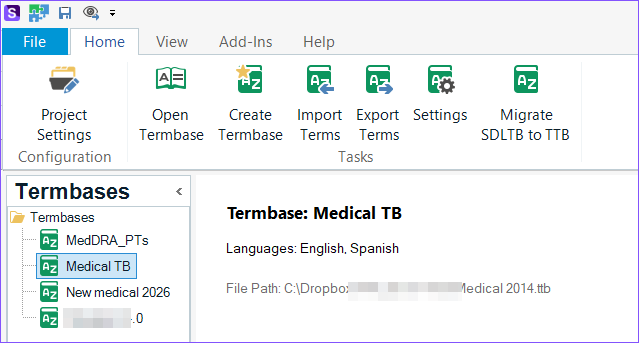
In this release, Studio has officially decoupled from MultiTerm. While Studio 2024 SR1 already allowed you to create termbases without installing MultiTerm, it still relied on the old .sdltb file format. The 2026 version introduces .ttb files (think Trados TB), now housed inside Studio. In fact, you can’t even open .ttb files in MultiTerm, which is now relevant for server-based termbases only.
To manage the new set-up, you’ll find a dedicated Termbase view in the bottom left navigation pane, where you can migrate existing termbases from .sdltb to .ttb, create brand new termbases, and edit fields or global settings.
Creating a termbase is now far more intuitive than in the clunky wizards of old. RWS has implemented the familiar “metro stop” progress bar at the top of the wizard, giving the set-up process the same modern look you’ll be familiar with when creating a new project or translation memory.
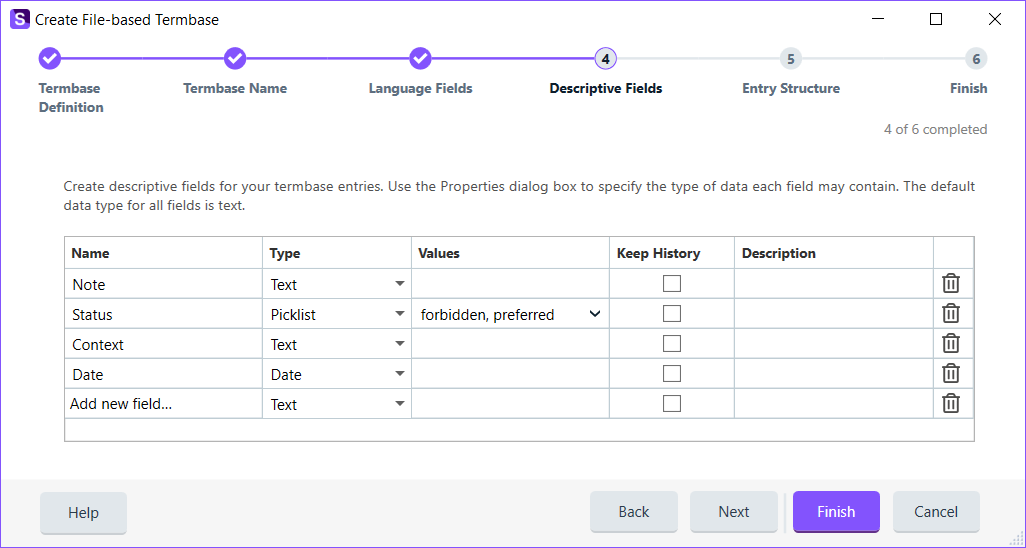
Tip: When creating a new termbase, instead of building it from scratch, select the Bilingual glossary template in the wizard. Despite the name, you can actually add more than two languages if needed, and it saves you considerable manual configuration time.
Although the new view lacks some important features, fear not. I hear a built-in search function and a direct interface for term creation and editing will be added very soon. In the meantime, you can add terms to an active termbase directly in the Editor, selecting the source and target terms and clicking Ctrl+F2.
AI Bridge
When AI features first arrived in Studio 2024, the AI Assistant app was tied to OpenAI or Azure OpenAI. The new AI Bridge app in Studio 2026 allows you to connect any LLM provider simply by entering your own API key.
Another improvement is extending processing from single segments to a broader context. You can now set the scope of that context by defining how many segments the model should read before translating or editing a segment or chunk of segments.
AI Bridge governs both individual segment translation/revision and the pre-translation stage in batch processing. In both areas, you can explicitly prompt the model to deploy the terms defined in your active termbases.
For data confidentiality reasons, I’m unable to send my clients’ texts to external AI providers for processing, so my hands-on investigation in live workflows has been limited. To avoid data privacy issues and access resources for free, Hugging Face models can be configured to run locally using LM Studio or Ollama, although to be honest, I’m not sure my machine or tech skills would cope. One to add to my to-do list. To read more about AI Bridge configuration, segment grouping and context scope, see Translation continuity and batching in the RWS Documentation Centre.
High-contrast themes
Studio 2024 laid the groundwork for better accessibility, ensuring that screen readers could accurately parse segment numbers, statuses, and source/target text. Studio 2026 builds on this by rolling out beta support for Windows high-contrast themes.
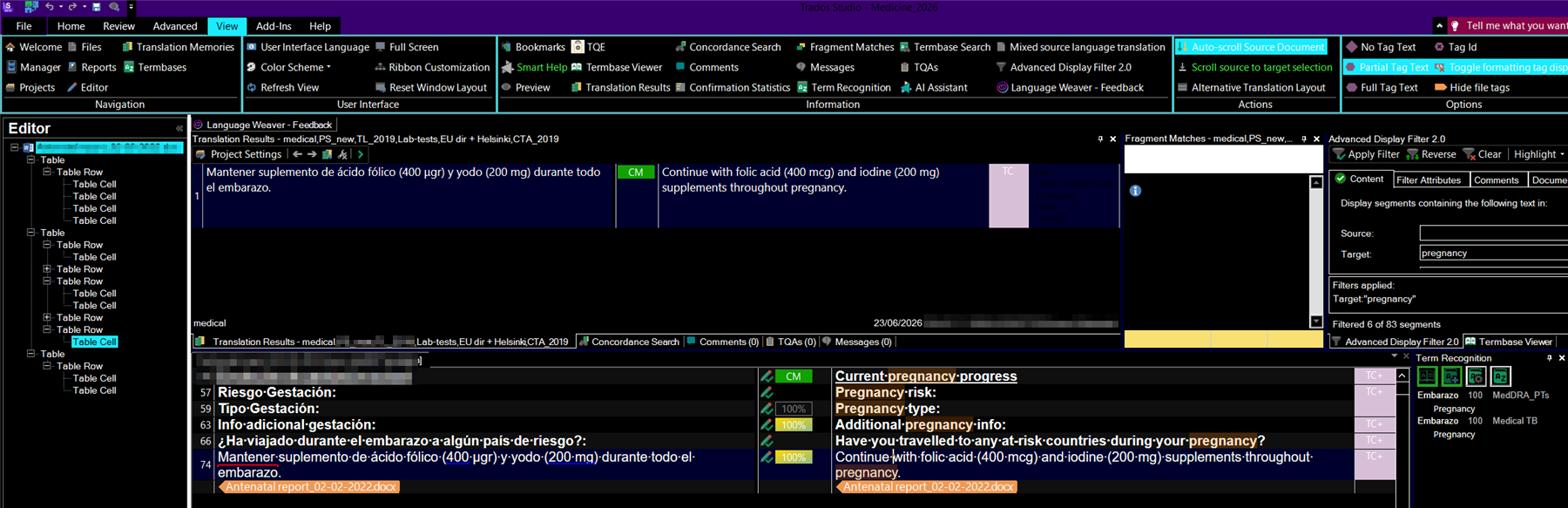
Note that when you enable a high-contrast theme globally in Windows System Settings, all apps on your device adopt the theme, and not all of them render as well as Studio does. If you want the night to fall on Studio only, a solution is just around the corner: true dark mode will be implemented very soon.
Tip: Close Studio and other apps before toggling high-contrast themes in Windows System Settings.
Manager view
The Manager – a single workspace centralising projects, files and reports – first appeared as a beta in Studio 2022. Over the last few iterations, cloud project support appeared, together with visual timelines and the ability to add new files mid-project.
With Studio 2026, you can now delete files directly from projects and compare analysis statistics at an individual file level.
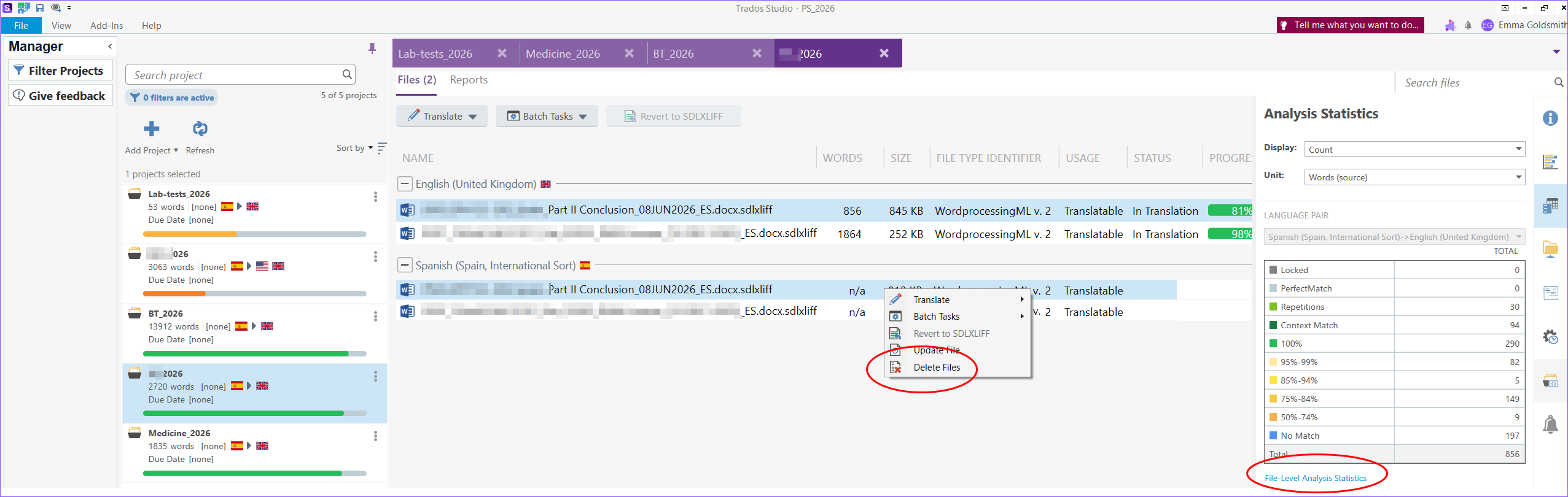
With these latest refinements, the Manager View finally delivers a solid set of features in an intuitive workspace and saves you from constantly switching tabs.
Small but significant improvements
Minor but practical enhancements always catch my attention when I’m beta testing. It’s often the little things that increase the pleasure of using a program.
Comments
Threaded replies and font resizing in the Comments pop-up window quietly appeared in Studio 2024 SR1. In Studio 2026 you can now quickly save and close a comment box by pressing Ctrl+Enter. In addition, deleting a comment can now be done directly in the context menu, which means you can assign it a custom keyboard shortcut. (File tab>Options>Keyboard Shortcuts)
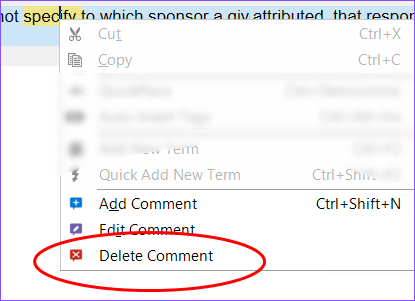
Tip: While you’re assigning the above shortcut, consider changing the “Add Comment” shortcut to Ctrl+Alt+M, to make it match the same shortcut in MS Word.
QA messages
In the Messages pane, you can now select multiple QA warnings simultaneously to batch delete them. This is a massive time-saver for final project checks, especially when working with clients who want a clean (warning-free) sheet in a bilingual file delivery.
Find and Filter features
When you apply text filters via the Display Filter or search for a term in the standard Find and Replace dialog box, results are highlighted, with the active term rendering in a bolder colour than the rest. Alhough this feature originally debuted in Studio 2024 and was refined in a Cumulative Update, it’s too good not to mention here.
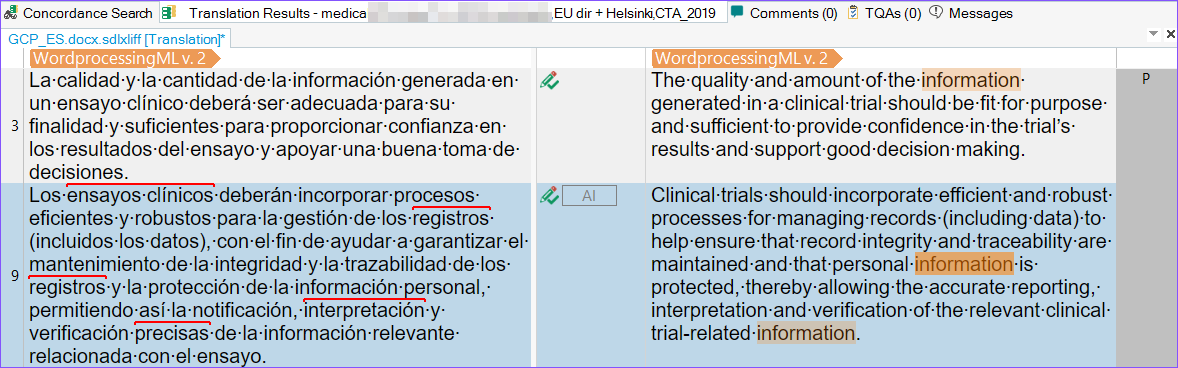
Tip: These highlights automatically disappear the moment you begin editing a segment. To bring back the highlights, simply press F4.
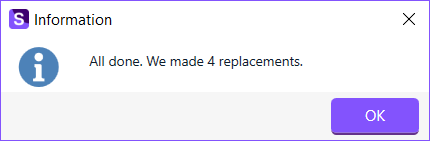
In addition, after running a Find and Replace operation, a pop-up window tells you exactly how many replacements were made throughout the document. Just like in MS Word.
Account info
Also mirroring MS Word, RWS has added a dedicated account and license management page under File>Account, just where you’d expect to find it. Don’t worry, if you dislike UI changes, all this information remains accessible under the traditional Help tab on the ribbon.
Compatibility
Before upgrading to Studio 2026, you might want to read a few words on compatibility:
- Local projects: Studio 2026 shares the same project format as its predecessors. However, if you open a project created in an earlier version, any .sdltb termbases will appear greyed out and you’ll have to remove and migrate them to .ttb. It’s probably best to start with fresh projects in 2026.
- Project packages: If you open a project package (.sdlppx) created in an older version of Studio, the software will automatically migrate legacy termbases on the fly as it unpacks. Conversely, when creating packages in Studio 2026 to send to users with an earlier version, the package settings include an option to generate local termbases in the legacy format.
- Studio apps: Legacy plugins won’t run in the new 64-bit environment. Plugins maintained by theTrados AppStore Team have already been updated, but third-party plugins are only starting to appear in the AppStore now. At the time of writing, 74 of the 181 apps available for Studio 2024 are available for Studio 2026
Subscriptions and perpetual licenses
Now for the painful part. New freelance licenses are subscription-only and cost €45 per month or €480 when billed annually. That’s a steep 30% increase compared with just two years ago. The price includes full support (unlike before), one desktop activation and browser access. See more details on the Trados pricing page.
If browser-only access works for you, consider Trados Go (€32/month), but note you can’t open project packages, work in reviewer mode or access AI Bridge.
Tip: Check if your translation association offers discounts on Trados subscriptions.
Perpetual license owners can upgrade as usual, but prices have also increased. A single-use Freelance Perpetual upgrade from Studio 2024 costs about €480. Be warned: Freelance Plus Perpetual (with two desktop activations) costs almost double.
The freelance challenge
To be fair, RWS is not alone in their subscription-model approach. Freelancers face an ever-growing list of annual subscriptions, from CAT tools to invoicing software, MS 365, specialist resources, AI access, cloud storage and association fees. Software subscriptions make sense for users and developers alike, because a continuous stream of improvements can be dropped into an app instead of waiting for a cumulative update or a biennial upgrade. It does, however, make me wonder how freelancers will cope. Some things will have to give.
Moving forward
That said, with the upgrade path from Studio 2021 closing on 30 September and support for Studio 2022 ending on 31 December this year, upgrading promptly and regularly seems the best option for permanent license owners, while this model remains available to us.
TL;DR: Despite the burden of increasing freelancing costs and the fragile state of freelancing in general, I can’t cut corners on the one tool I use on a daily basis – the very tool that improves my productivity and helps ensure consistency and quality – so I’ve upgraded already. What about you?
Join the discussion over on LinkedIn.


Hi Emma!
So happy to see you writing about Trados Studio again! Great!
Mats
Hi Mats! Nice to see you here too!
Can I upgrade from 2024 to 2026 free of charge?
Hi Ganerdene! Check out the section “Subscriptions and perpetual licenses” near the end for full details.