When I was a tutor on the Setting up as a freelance translator course run by the Institute of Translation and Interpreting (ITI), I tried to instil in my students the importance of preparing for the unexpected. Always have a backup plan in place – I advised them – you never know when you might need it. And guess what? My backup plan was put to the test last March.
A fabulous skiing trip ended abruptly with a fall, shooting pains in my left wrist, an X-ray, and a below-elbow plaster cast for the next four weeks.
First, I messaged a client to cancel an urgent project and recommend a colleague to take my place. Then, back at my desk a few days later, it was time to dust off Dragon, a speech recognition program by Nuance. I’d tried Dragon in the past but given up, first because of poor computer specs (Dragon hogs memory) and later because a truculent Trados refused to play.
Dragon Professional V16 currently sells at €999 in the EU (£680 in the UK). If I hadn’t had a license already, I would have tried open-source Talon or Windows Speech Recognition (WSR). But the first is for techie people with time on their hands and the second works only if your operating system runs in its native language without an overriding language pack. Neither of these applied to me.
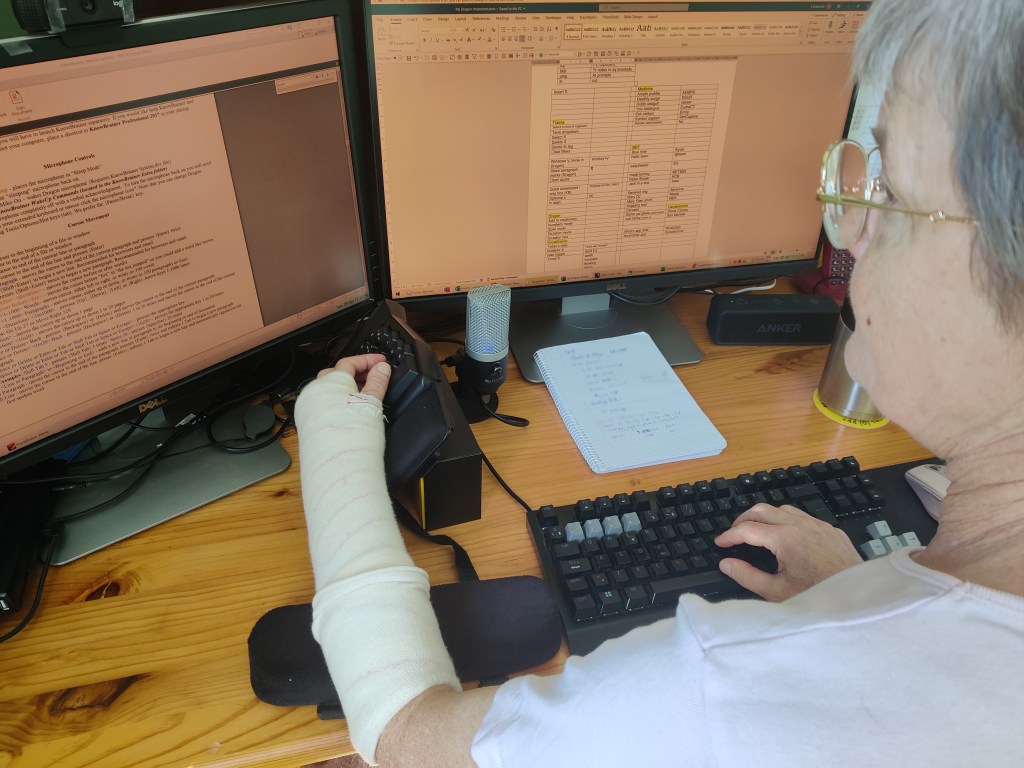
So I dug up Dragon V15, installed it and then wondered which microphone to use. Putting on headphones with a single hand defies the laws of nature. Try it yourself – maybe you have the knack – and then keep them on for hours. I found that even my lightweight Sennheiser headset1 made my ears sore. A single earpiece2 proved equally tricky to put on and Dragon struggled with its Bluetooth connection. Finally, I settled on an Anker speaker3 combined with a desktop microphone4, which Dragon picked up well with the mic positioned about 12 inches away.
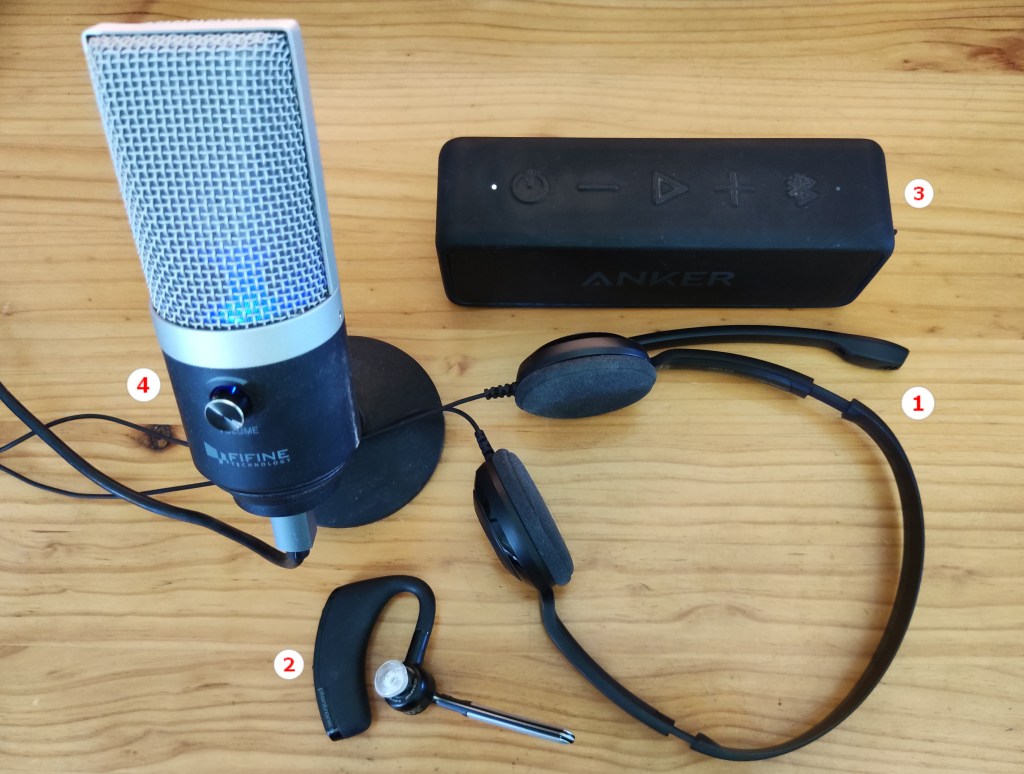
- Sennheiser PC 8 headphones
- Plantronics Voyager Legend earpiece
- Anker SoundCore 2 speaker
- FIFINE K670 microphone
Say what? Getting to grips with Dragon-speak
My first dictation efforts seemed promising: Testing, testing, are you listening, Dragon, question mark. This looks good, exclamation mark. But I’m less fluent when translating: I pause for thought, skip back to delete a word, shuffle the order, stet, and sometimes start over. My words don’t flow. Dragon stuttered in sympathy, causing the cursor to jump around randomly in Word, and the undo function to behave unpredictably. (I hear these two issues are largely resolved in Dragon V16.)
Dragon commands integrate well with Word’s natural language approach. The trick is to say what you see, from insert symbol to zoom to 120 per cent or open footer. When I got stuck, I learnt to ask What can I say?, which triggers a pop-up window in any app, showing available commands.
Despite such a natural, deceivingly human approach, nothing could prepare Dragon for a full-on medical translation experience. I started adding rare but frequently used words to Dragon’s vocabulary and teaching it my pronunciation. Dragon was quick to digest drugs and rare diseases. While common abbreviations could be spelled out (ECG, MRI), more challenging ones required a more imaginative approach. A standard drug reaction report, DSUR, kept being rendered as “D.S. you are”, so I trained Dragon that every time I said dippy sugar it should write DSUR. (Special thanks to Claire Cox for this ingenious tip.)
Once I felt comfortable dictating in Word, I turned to Trados. I added some customised commands. For example, Insert term became Dragon-speak for inserting a term from my termbase (replacing the shortcut Ctrl+shift+L) and Filter this word showed certain segments only (Ctrl+shift+F). Dictating in the editor window worked well, but Trados isn’t a native “Select-and-Say” app, so to add to Dragon’s vocab you have to call up a special dictation box. Good news for memoQ users: no jumping through hoops for you.
Dragon and other languages
English-speaking family members soon learned that dictation mode in my home office could lead to domestic exchanges being inadvertently reproduced word for word in an email or Trados segment. I quickly mastered the command Go to sleep to put Dragon on pause. Eavesdropping on Spanish conversations produced gobbledygook, because Dragon only understands one language at a time. If you buy the program in Nuance’s UK online store, you’ll receive a monolingual English dragon; if you buy it in another country, you’ll receive a bilingual dragon and have access to each language through two separate user profiles. Switching from one to another takes a while, so I found it easier to use the native dictation function in Word or Outlook for my Spanish dictation needs.
Dragon and other animals
Mice and dragons get on well, so I could select, click and drag with my good hand while translating aloud. In fact, mouse work felt so familiar and easy compared to my duels with Dragon that I had to be mindful of the risk of contralateral repetitive strain injury. I added a wrist pad to my set-up and alternated between a conventional and an ergonomic mouse. I was lucky that my dominant hand was unaffected by the accident, but I could have switched mouse hands if necessary – I’ve become an ambidextrous mouse user over the years to avoid right-hand fatigue.
PhraseExpress
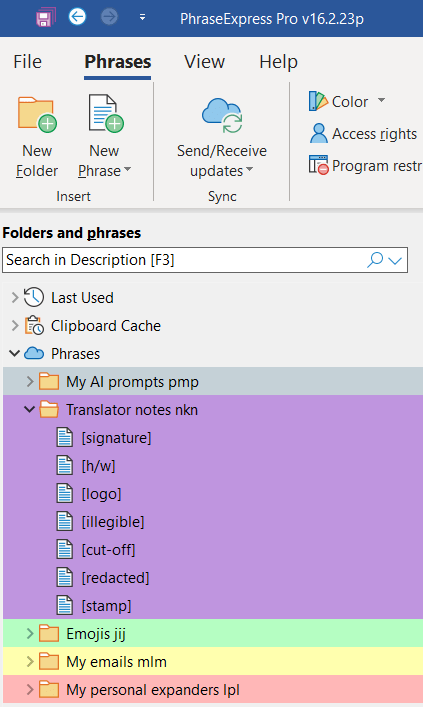
Dragon integrates well with PhraseExpress, an app that stores frequently used word strings, phrases and email templates, and expands them automatically with a hotkey or text trigger. To adapt PhraseExpress to Dragon, I grouped my items as pop-up menus to appear when I give the cue. For example, nkn calls up a list of notes I often add in square brackets to my translations ([illegible], [redacted], [signature], etc.) and mlm displays my email templates. PhraseExpress is a nifty time saver in normal working mode and a life saver in broken-arm mode. It’s more user-friendly than AutoHotKey and more flexible when working with Dragon.
KnowBrainer
Another app that runs side by side with Dragon is KnowBrainer. This third-party utility adds scores of easy-to-remember commands, which smooths the learning curve. For example, with KnowBrainer you can say Snip box to call up Window’s snipping tool or Case toggle to replace the F3 shortcut in Word or Trados. And if something unexpected happens (a program opens, a print dialog appears or the cursor jumps elsewhere), just ask What did I say? to get your eyes on what Dragon thought it heard. (This phrase is so much easier to remember than Dragon’s own command for the same action: Show recognition history.)
KnowBrainer also makes it easy to create commands. Setting up dedicated commands to select, correct, add and delete words in Trados took time, but made me more productive in the long run.
Experimenting with ergonomics
One week in, I’d got to grips with Dragon. Long hours of talking had led to a sore throat every evening for a few days, but my voice soon adapted. I learned to enunciate every word carefully and clearly, pausing less mid-sentence. Yet despite my progress, I still missed my keyboard.
I’d been told to wiggle my fingers in my cast to keep them moving. Typing would be good exercise, I figured, if only the cast allowed me to rotate my wrist and arm to a prone position, level with the keyboard. It was physically impossible. But if my hand couldn’t reach the keyboard, how about tilting the keyboard to reach my hand?
Adapting equipment to our needs is the essence of ergonomics. Indeed, Merriam-Webster defines ergonomics as “an applied science concerned with designing and arranging things people use so that the people and things interact most efficiently and safely”. Accordingly, I rolled up my metaphorical sleeves and got down to work.
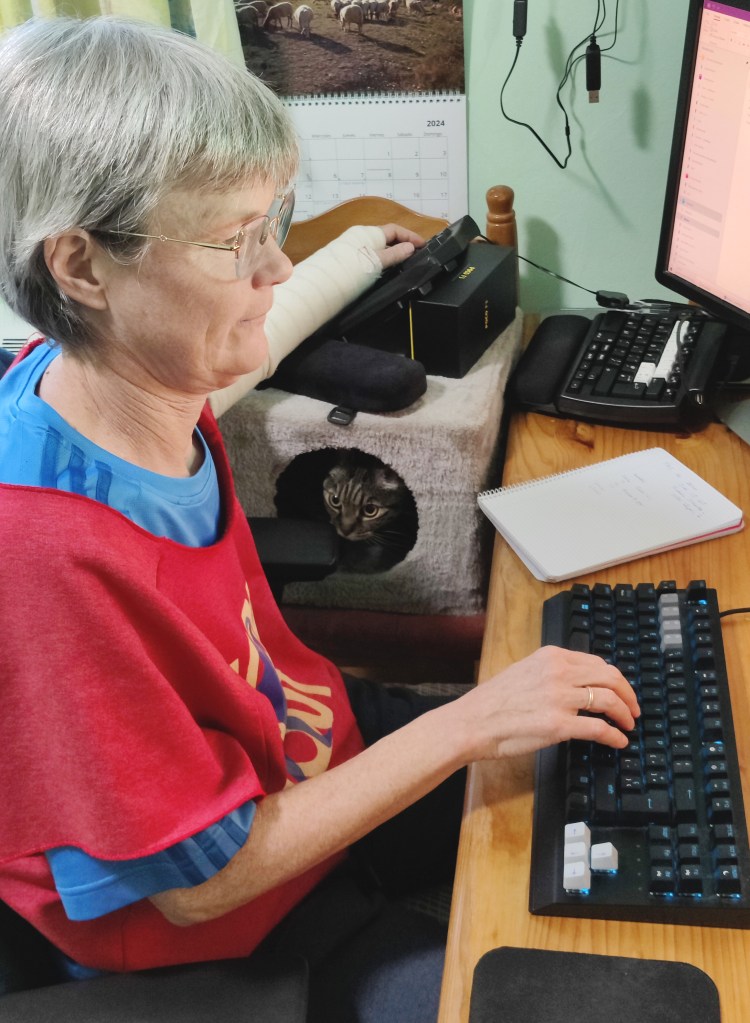
Prototype 1 took the shape of a half Matias Ergo Pro keyboard raised to my left and balanced on top of my cat’s playbox (cat included). Typing with two keyboards worked well, but my arm soon tired.
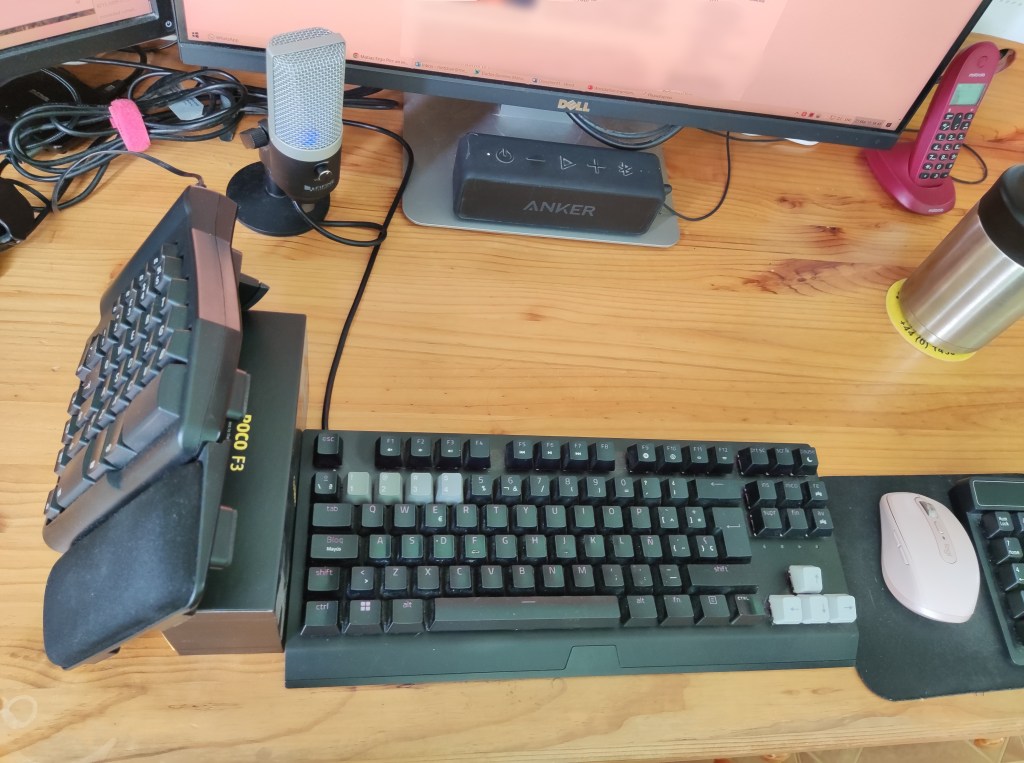
Prototype 2 saw the same half-keyboard propped up at a 60° angle on my desk, cast resting on a wrist pad and my usual keyboard shifted off-centre. Better, much better. My typing was fairly efficient, albeit slow, and my arm was comfy.
Limited finger span still made the stretch to reach ‘B’ rather awkward – fortunately ‘B’ is one of the lesser-used letters of our alphabet – and downright impossible for my little finger to reach that elusive left control key. Determined not to be beaten, I turned to AutoHotKey to perform the ubiquitous Ctrl+C shortcut with my right hand by remapping the ç key on my Spanish keyboard to make it a one-click Ctrl+C. A similar one-click shortcut for Ctrl+V also proved efficient. Here’s the AutoHotKey script for Ctrl+C, in case you want to try it at home:
ç::
Send ^c
return
A short-lived Prototype 3 took the form of an external numeric keypad whose numbers I remapped to mimic a half-keyboard. The square layout of the keys made typing challenging. It kept falling over. Back to my second invention.
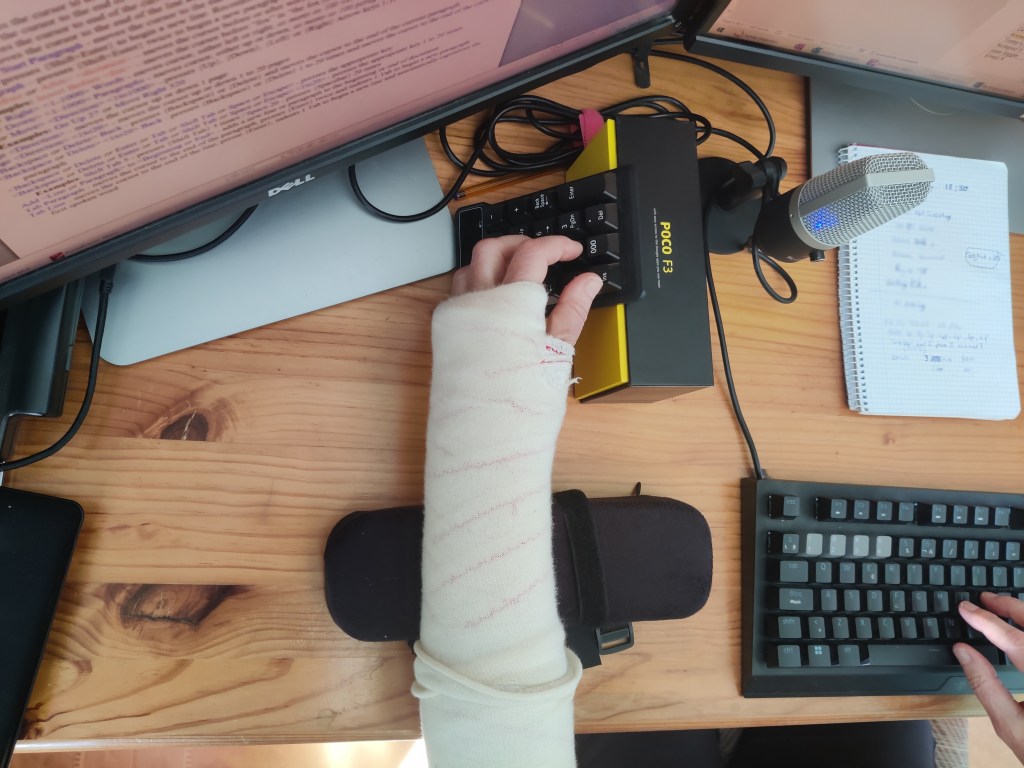
As the weeks went by, Prototype 2 combined with Dragon gave me sufficient versatility to overcome the frustrations of working with a broken arm. I even discovered unsuspected benefits, like learning to set up nifty new shortcuts and improving my diction, which came in useful when I presented a webinar for ITI MedNet a few weeks later. (On ergonomics – the irony of it!) But the real silver lining was the satisfaction of finding that my backup plan worked and that, as a freelancer, I didn’t have to stop working for four weeks or more.
Make sure you have a backup plan, too. Try Talon or WSR or buy Dragon, get ambidextrous with your mouse, and investigate PhraseExpress. Then cross your fingers and hope you’ll never need to put the plan into practice!
This article first appeared in the July-August 2024 issue of ITI Bulletin. Reproduced here with permission.


 Signs & Symptoms of Translation
Hi Emma, I hope your wrist has fully healed. I’d be interested to hear whether this experience has led you to keep dictation as part of your normal workflow.
Best wishes
Helen
Happy to report that I’m close to regaining a fully functional wrist, after three months of my own targeted exercise plan. Physiotherapy never materialised – the appointment took too long to come through 😥.
I’m back to typing, which I love, and Dragon has gone into hibernation. Hope I never need to wake it up!
Pingback: Around the web – July 2024 | A Smart Translator's Reunion